Commands
Learn how to install RHEL 10 Workstation in 12 easy, step‑by‑step instructions—from downloading the ISO to post‑install configuration, complete with CLI examples and practical tips. Table

Learn how to set up a lightweight desktop environment on Oracle Solaris 11.4, including package discovery, X11 configuration, performance tuning, and best practices.
Oracle Solaris 11.4 is widely known for its stability, security, and enterprise-grade features. While it ships with a full-featured GNOME desktop, many administrators and power users prefer a lightweight desktop environment to conserve system resources, improve responsiveness, or support older hardware. This guide explains how to plan, install, and optimize a lightweight desktop environment on Oracle Solaris 11.4 using supported tools and best practices.
A lightweight desktop environment (DE) focuses on efficiency and minimal resource usage. On Solaris systems, this approach offers several benefits:
|
|
|
|
These advantages are especially relevant when Solaris is used for development, testing, or as a jump host rather than a full end-user desktop.
Solaris 11.4 primarily supports GNOME as its default desktop, but additional environments and window managers may be available through the Image Packaging System (IPS) or supported repositories.
🔥 Common Lightweight Desktop Choices |
| Desktop / WM | Resource Usage | Use Case | Notes |
|---|---|---|---|
| Xfce | Low | General-purpose desktop | Balanced performance and features |
| MATE | Low–Medium | GNOME 2–style experience | Familiar layout for legacy users |
| Openbox | Very Low | Advanced customization | Window manager only |
| FVWM | Very Low | Minimalist environments | Highly configurable |
| TWM | Extremely Low | Testing and recovery | Basic and functional |
👉 Tip: Availability may vary by repository and support contract. Always verify packages using IPS before installation. |
If you only want to install the default GNOME desktop environment for Oracle Solaris 11.4, run the following command:
pkg install solaris-desktop
Once the installation is complete, reboot your system to ensure the latest available GNOME release is active—currently GNOME 45.9.
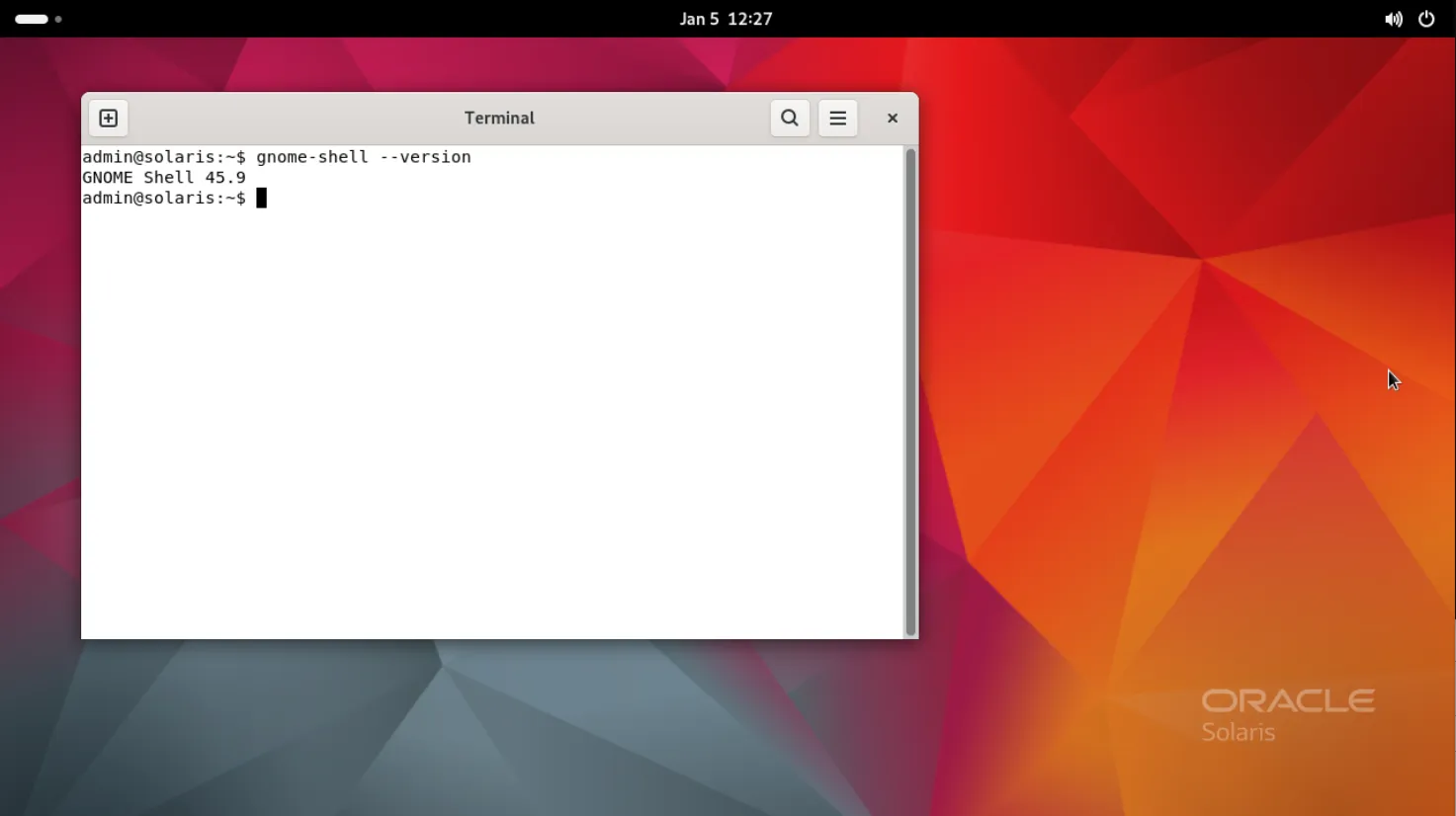
Photo by admingeek from Infotechys
Before installing a lightweight desktop environment, ensure your system meets these requirements:
|
|
|
|
🟢 Verify System and Package State |
uname -a
pkg list entire
Ensure your system is up to date:
pkg update
A desktop environment requires the X Window System. Many Solaris installations already include it, but minimal installs may not.
🟧 Check for X11 Packages |
pkg list | grep x11
If needed, install the core X11 components:
pkg install x11/server/xorg
After installation, confirm that X can start:
/usr/bin/startx -- -retro
If you see a basic X session, your graphics stack is working correctly.
Instead of assuming package names, use IPS search to discover what is available on your system.
pkg search xfce
pkg search mate
pkg search openbox
This approach ensures compatibility with your configured publishers and Solaris release.
Xfce is a popular choice due to its balance of performance and usability.
🟧 Install Xfce Packages |
pkg install desktop/xfce
If the package is split into components, IPS will resolve dependencies automatically.
🟧 Optional Utilities |
You may also want supporting tools:
					pkg install \
  terminal/xfce-terminal \
  desktop/xfce/xfce4-panel \
  desktop/xfce/xfce4-session
Solaris typically uses the GNOME Display Manager (GDM). You can continue using GDM or start Xfce manually.
🟧 Enable GDM (if not already enabled) |
svcadm enable gdm
svcs gdm
At the login screen, select your desktop session (for example, “Xfce Session”) before logging in.
🟧 Manual Start (Alternative) |
For systems without a display manager:
echo "exec /usr/bin/startxfce4" > ~/.xinitrc
startx
This method is common for minimal or remote systems.
A lightweight desktop becomes even more effective with a few optimizations.
🟧 Disable Unnecessary Services |
List enabled services:
svcs -a | grep online
Disable services you do not need (example):
svcadm disable avahi
svcadm disable cups
👉 Always verify service dependencies before disabling them. |
The following table illustrates typical idle resource usage. Actual values vary by hardware and configuration.
| Desktop Environment | RAM at Idle | CPU at Idle | Startup Time |
|---|---|---|---|
| GNOME | 1.2–1.6 GB | Moderate | Slower |
| Xfce | 400–600 MB | Low | Fast |
| MATE | 600–800 MB | Low | Moderate |
| Openbox | <200 MB | Very Low | Very Fast |
These savings are especially noticeable on virtualized Solaris systems.
You can enhance usability while keeping the environment lightweight.
🟧 Recommended Applications |
| Function | Lightweight Option |
|---|---|
| Terminal | xfce4-terminal |
| File Manager | Thunar |
| Text Editor | Mousepad |
| Web Browser | Firefox (tuned) |
| PDF Viewer | Atril or Evince |
Install selectively:
pkg install desktop/thunar editor/mousepad
Solaris 11.4 includes strong security features that remain effective regardless of the desktop environment.
|
|
|
When configuring login managers and user sessions, ensure permissions are set correctly and avoid running desktop sessions as root.
🛠️ Desktop Session Does Not Appear in Login Screen |
|
|
svcadm restart gdm
🛠️ Black Screen After Login |
|
|
|
🛠️ Missing Icons or Themes |
Install basic icon and theme packages:
pkg install desktop/gtk3-engines icon-theme
In some Solaris deployments, even a lightweight desktop may be unnecessary.
|
|
|
In these cases, command-line tools and remote management provide better security and efficiency.
Setting up a lightweight desktop environment on Oracle Solaris 11.4 is a practical way to improve performance, reduce resource consumption, and tailor the system to your workflow. By using IPS to discover supported packages, configuring X11 carefully, and disabling unnecessary services, you can achieve a responsive desktop without sacrificing Solaris reliability.
Whether you choose Xfce, MATE, or a minimalist window manager, the key is intentional configuration. Solaris 11.4 provides the tools—you decide how lean your desktop should be.
Did you find this article helpful? Your feedback is invaluable to us! Feel free to share this post with those who may benefit, and let us know your thoughts in the comments section below.
Learn how to install RHEL 10 Workstation in 12 easy, step‑by‑step instructions—from downloading the ISO to post‑install configuration, complete with CLI examples and practical tips. Table
Learn how to set up a RHEL 9 workstation for creative professionals, with step-by-step instructions for installing essential software, optimizing performance, and creating a smooth,
Learn how to run Linux GUI applications remotely over SSH using X11 forwarding or Waypipe. Includes setup steps, CLI examples, performance tips, security advice, and